
App lock Pro
You can use app lock to restrict access to your app even when your system is unlocked. It works on desktop, web and mobile, and it is separate from the private vault — app lock covers the whole app, the vault covers individual notes.
App lock is part of the Pro plan and above. If a paid plan expires, app lock is switched off automatically, so set up your device's own lock screen if you rely on it.
Ways to unlock
| Method | Where |
|---|---|
| PIN or password | Desktop, web and mobile |
| Biometrics (fingerprint, Face ID) | Mobile |
| Security key | Desktop and web |
Turn on app lock
- Go to
Settings→App lock. - Turn on
Enable app lock. - Enter a password or PIN when prompted, and confirm it.
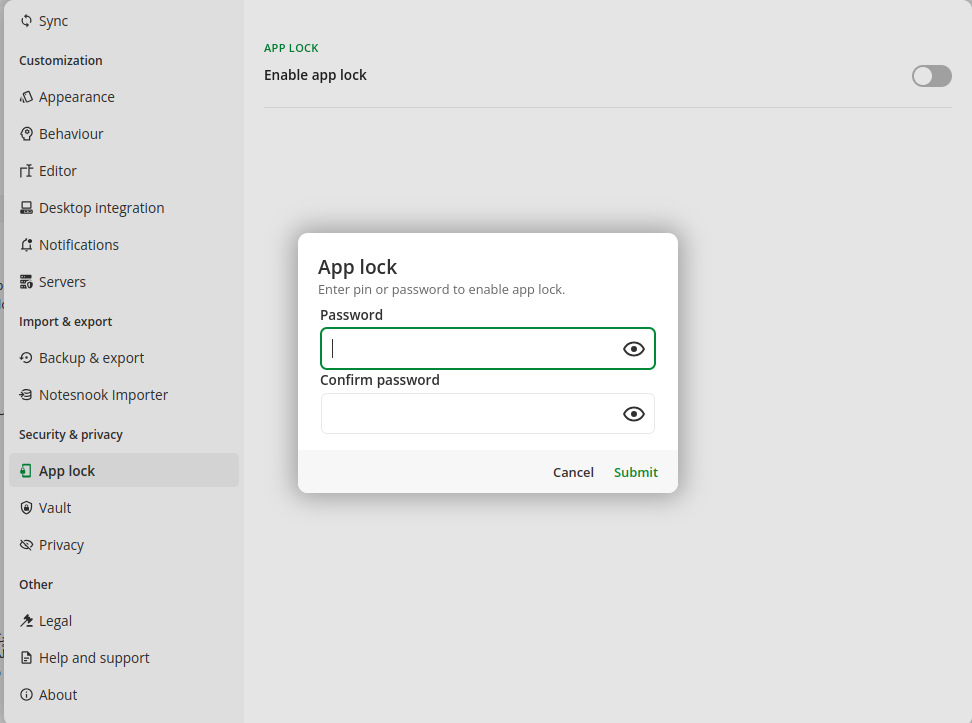
Notesnook now asks for your credential every time it starts, and after the timeout you set below.
Set how long before it locks
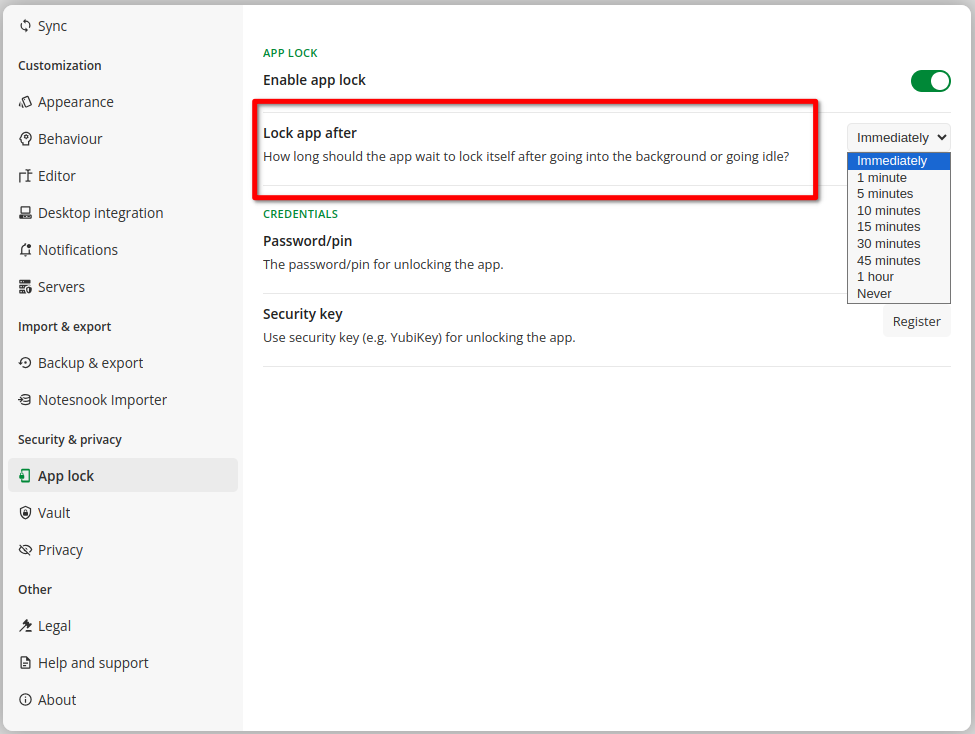
Lock app after decides how long the app can sit idle before it locks itself again. Never means Notesnook only asks when it starts.
- Go to
Settings→App lock. - Set
Lock app aftertoImmediately,1,5,10,15,30or45minutes,1 hour, orNever.
Change or remove your PIN, password or security key
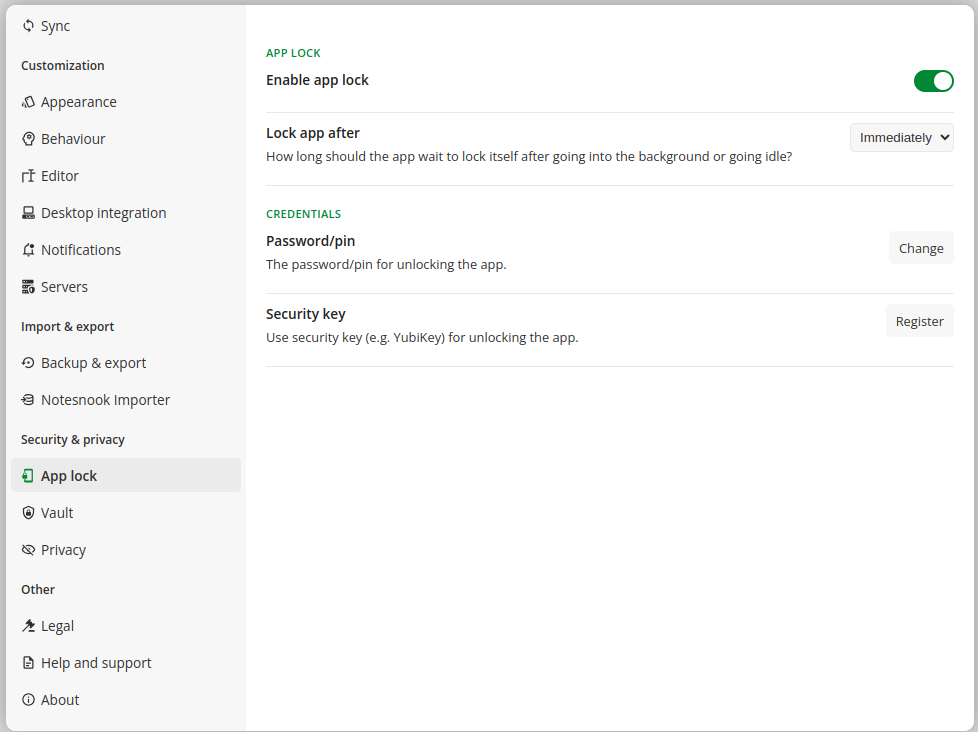
Under Credentials on the same screen:
Password/pin— pressChangeto set a new one, orDisableto remove it.Security key— pressRegisterto add a hardware security key, orUnregisterto remove it.
Lock the app right now
Rather than waiting for the timeout, you can lock immediately. On desktop and web, click the lock icon in the status bar at the bottom of the window.
Related pages
- Private vault — encrypt individual notes behind a separate password
- Privacy mode — stop screenshots and hide the app from the task switcher
- How is my data encrypted? — what protects your notes on the server
- Plans & limits — what the Pro plan unlocks