
How to import notes from Simplenote notes app?
Here is how to move your notes from Simplenote into Notesnook.
- Open Simplenote app on Desktop or Login to https://app.simplenote.com.
- Go to sidebar and click Settings.
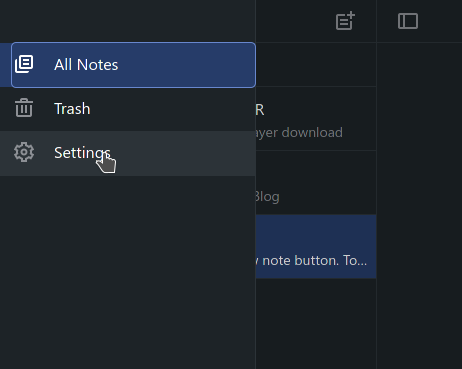
- Go to
Toolstab in Settings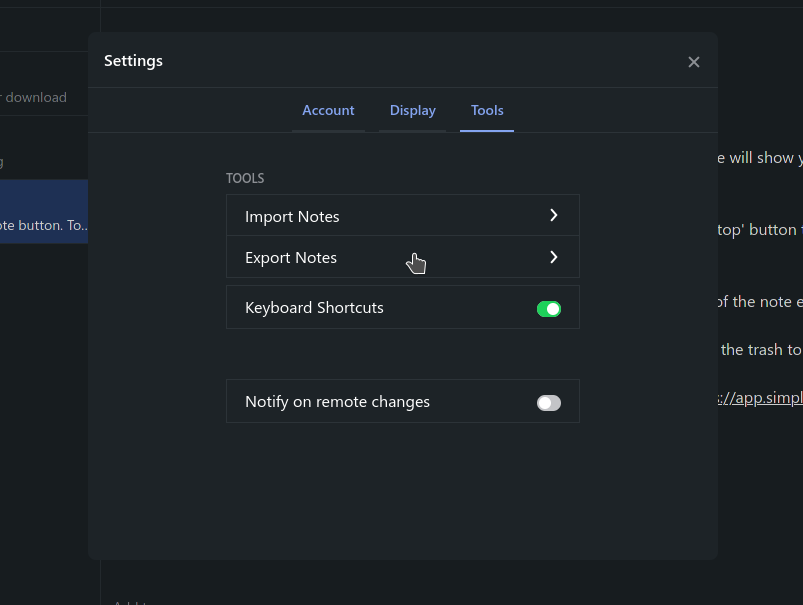
- Click
Export notesto download your notes as a .zip file. - Open the Notesnook app (web or desktop)
- Go to
Settings > Import & export > Notesnook Importerand selectSimplenotefrom list of apps.
- Drop the .zip backup file you exported earlier from Simplenote in the box or click anywhere to open system file picker to select the backup and click "Start importing".
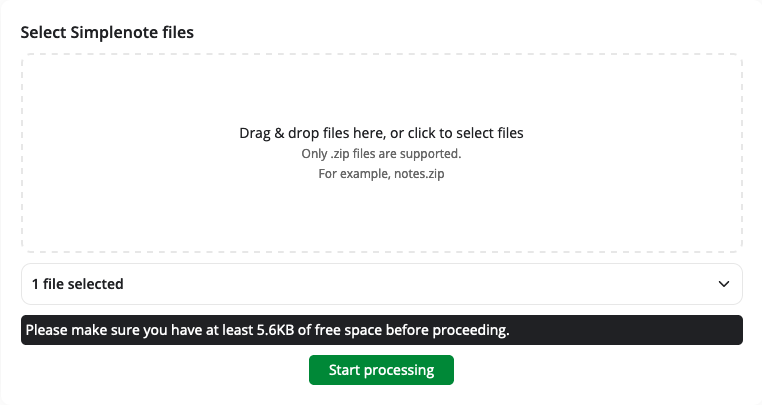
- Once importing completes you should see all your notes in Notesnook. If you face any issues during importing, report it on github.
Supported formats
Simplenote's export is, well, pretty simple and the Notesnook Importer supports 100% of it. It also preserves all the formatting and indenting in the imported notes.
Troubleshooting
Some of my notes have weird whitespacing and broken formatting after import. What do I do?
This can happen in notes for which you have enabled Markdown in Simplenote. Notesnook Importer follows this flag during processing and respects Markdown rules during the conversion to HTML. If you want to preserve the formatting of your notes, it is best that you disable the Markdown formatting for all your notes in Simplenote. This will force the Notesnook Importer to import all your notes as plaintext.
Related pages
- Importing notes — every app and file format Notesnook can import
- Import from Evernote — moving notes out of Evernote
- Import from Google Keep — moving notes out of Google Keep
- Import from Joplin — moving notes out of Joplin
- Backup and restore — protecting your notes once they're in
- How is my data encrypted? — what happens to your notes after the import