
Recovering your account
Notesnook is one of the few end-to-end encrypted apps that lets you recover your account after forgetting your password. Which of your notes survive depends on what you have kept: your data recovery key, a backup file, or neither.
You will be logged out
For account recovery to work reliably, you will be force logged out from all your other devices. It is recommended that you save & backup all your data on your other devices before continuing.
Requesting an account recovery link
The first step to recovering your account consists of requesting an account recovery link. Notesnook sends the recovery link on your registered email. Here's how you can do that:
The new login flow
The recent versions of Notesnook have updated the login flow. It is now mandatory to verify your 2FA before you can request an account recovery link.
- Go to Notesnook Login page
- Enter your email & continue
- Verify your 2FA & continue
- On the next page, click
Forgot password?
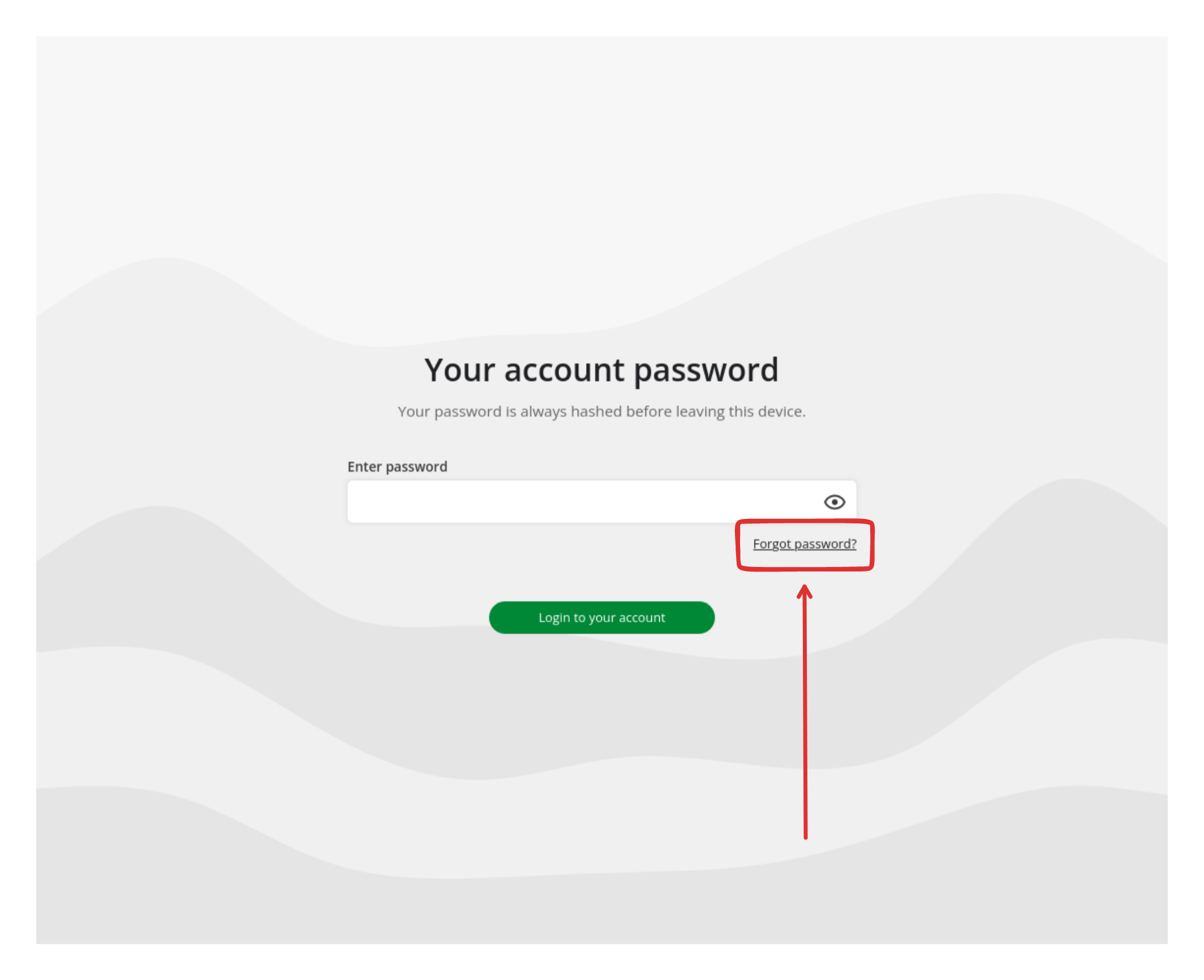
- On the next page, your email should be prefilled. If it isn't, fill it out.
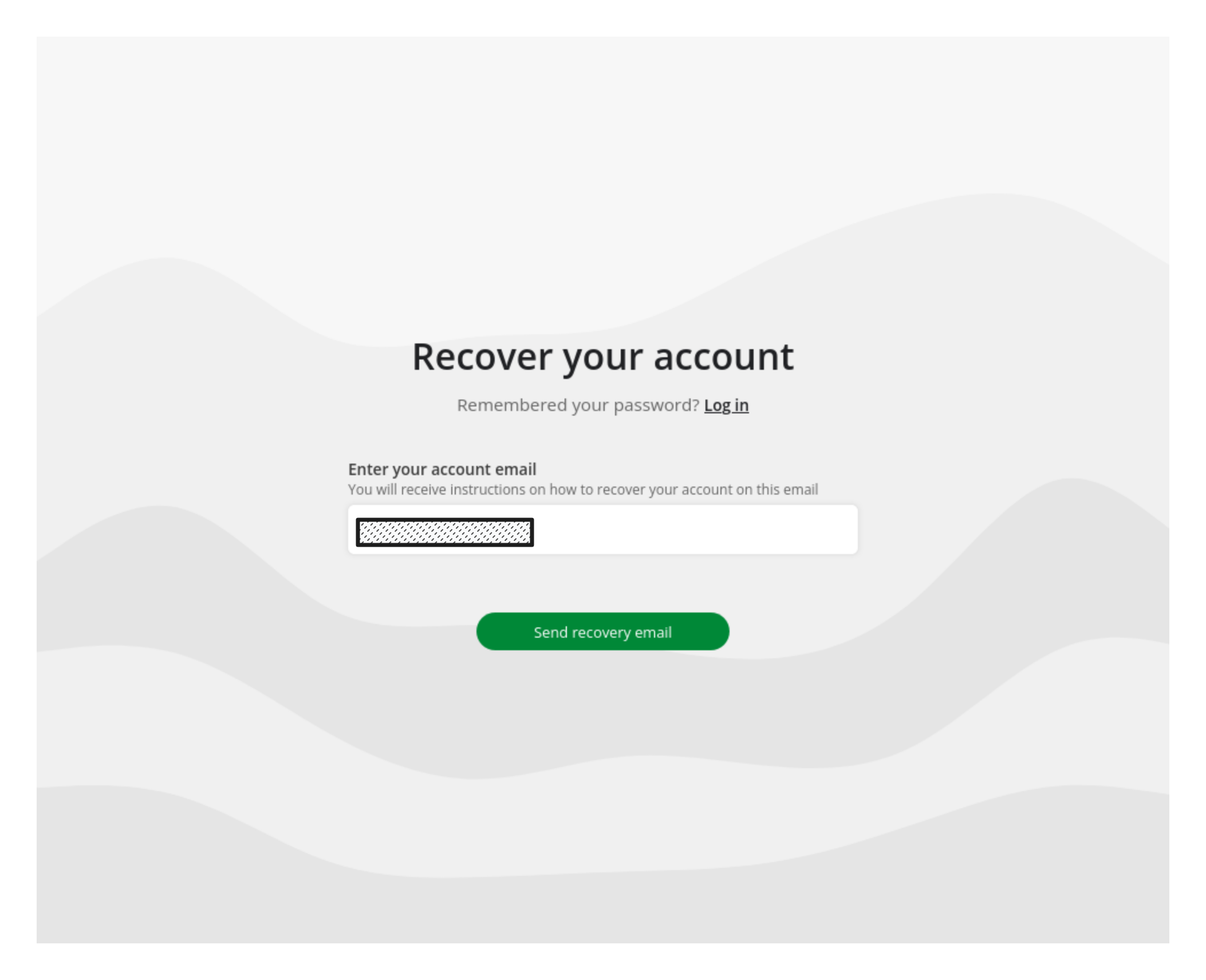
- Click
Send recovery email - If everything goes well, you should receive an email from Notesnook in your inbox:
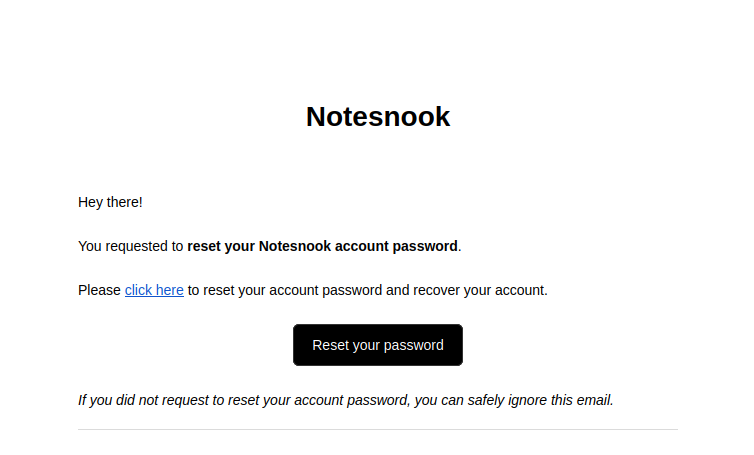
- Click the
Reset your passwordbutton in the email. This takes you to the account recovery page.
What if I didn't receive an email?
Check your spam/junk folder if you haven't received one & contact us if you still don't find it.
Choosing an account recovery method
Notesnook gives its users a variety of recovery methods depending on the data they have:
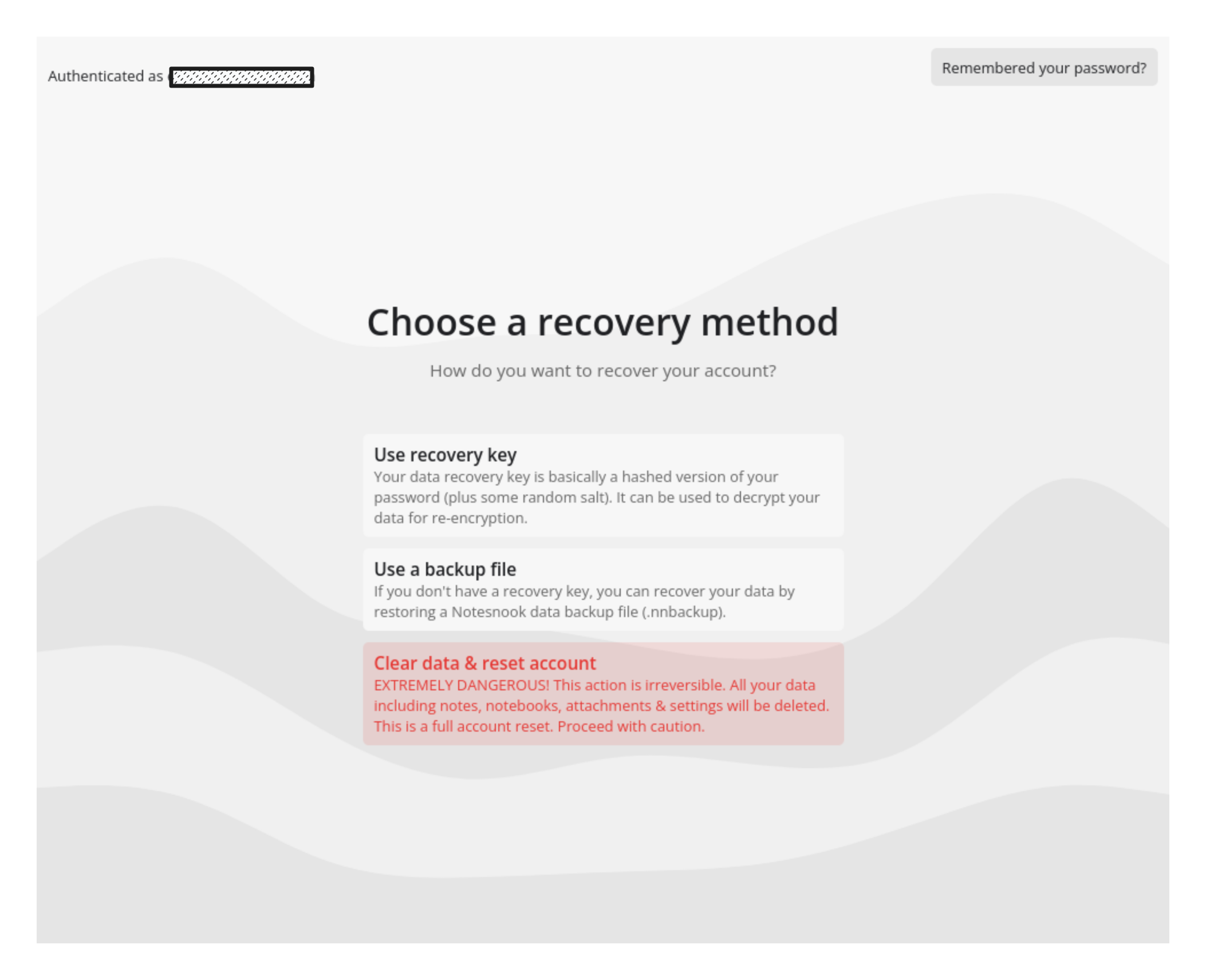
There are three, and they are listed in order of how much you keep:
| Method | What it does | Your notes |
|---|---|---|
Use recovery key | Decrypts your data with your old key and re-encrypts it with the new password | Kept |
Use a backup file | Restores your data from a .nnbackup file you saved earlier | Kept, up to the date of that backup |
Clear data & reset account | Wipes the account and starts it over | Deleted |
Use recovery key
This is the safest method, because it decrypts your data with your old key and then re-encrypts it with your new password. Nothing is lost.
- Click the first option (the button that says
Use recovery key) if you haven't already - Enter your recovery key in the input field & click
Start account recovery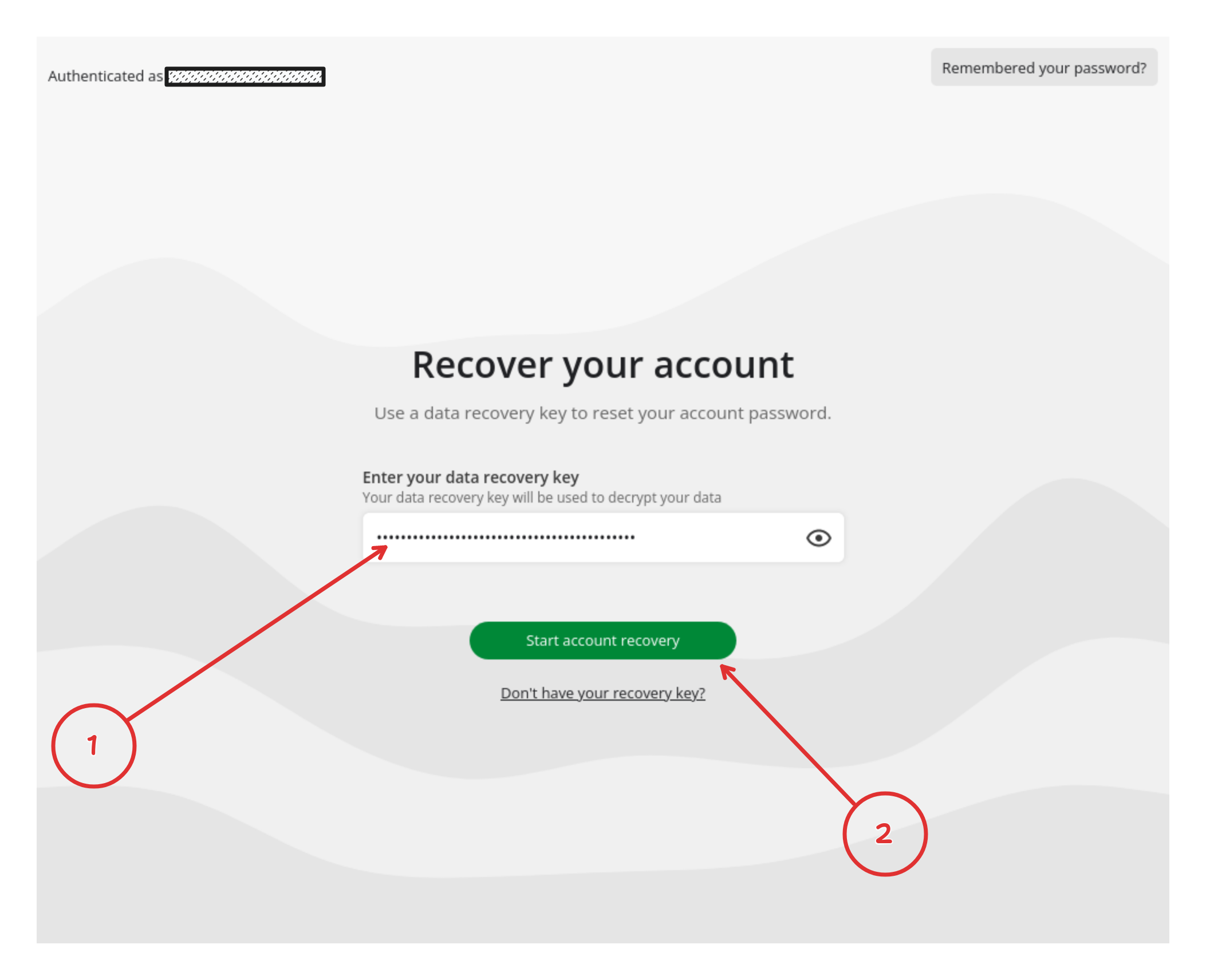
- Click
Download backup fileonce your data has been downloaded. Don't forget to save the file in a safe place.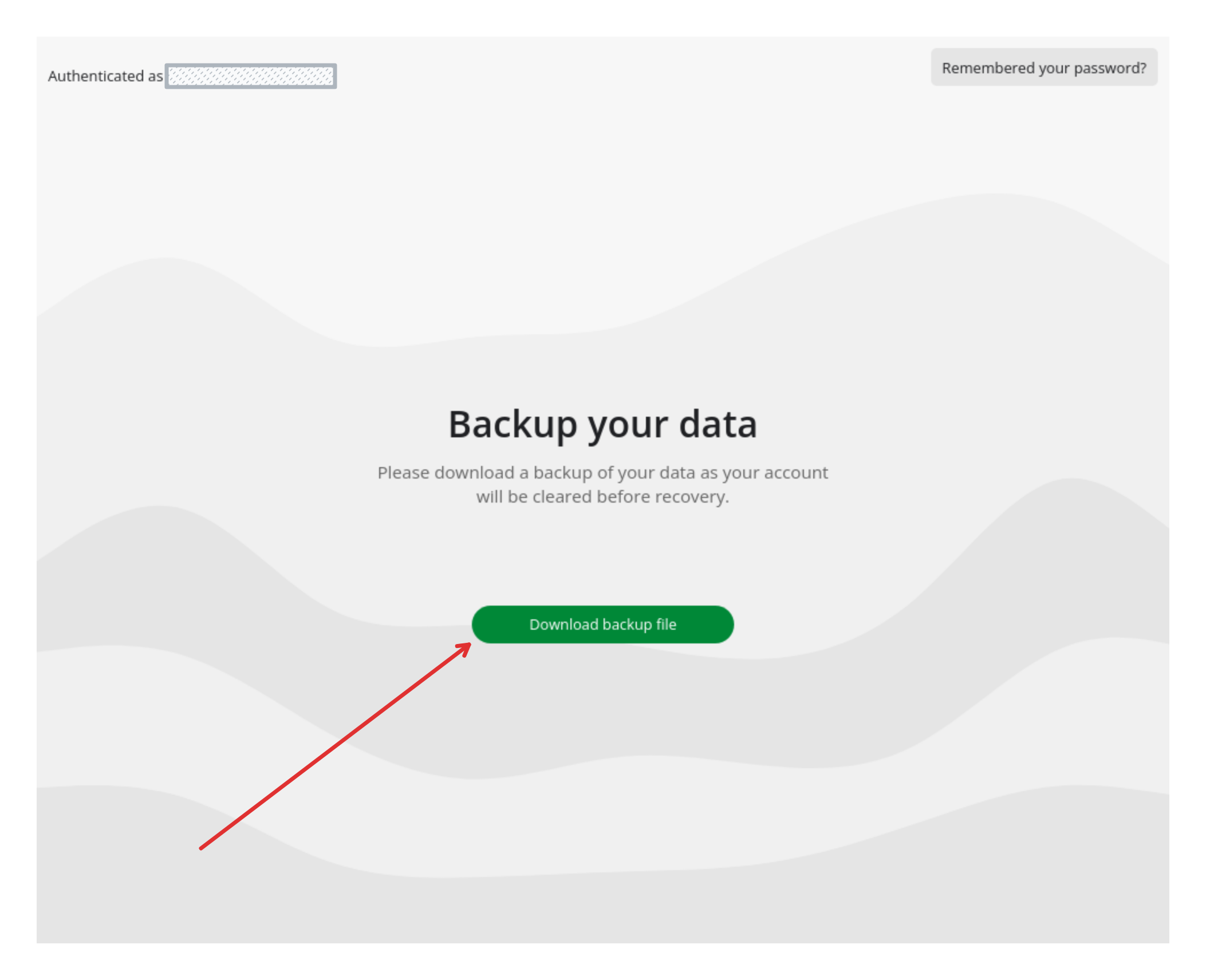
- For next steps, see Resetting account password section
Use a backup file
If you don't have your recovery key but you do have a backup file, you can recover from that instead. You get back everything that was in the account when the backup was taken; anything written after it is not in the file and cannot be recovered.
- Click the second option (the button that says
Use a backup file). - Select the
.nnbackupfile you saved. - For next steps, see the Resetting account password section.
Clear data & reset account
This deletes everything in the account
This method clears all your data — notes, notebooks, reminders, tags and attachments. It is irreversible, and because your data is end-to-end encrypted, Notesnook cannot restore any of it afterwards. Only use it if you have neither a recovery key nor a backup file, and you accept starting from scratch.
- Click the third option (the button that says
Clear data & reset account). - For next steps, see the Resetting account password section.
Resetting account password
Once you have selected the appropriate account recovery method, you'll be asked to choose a new password.
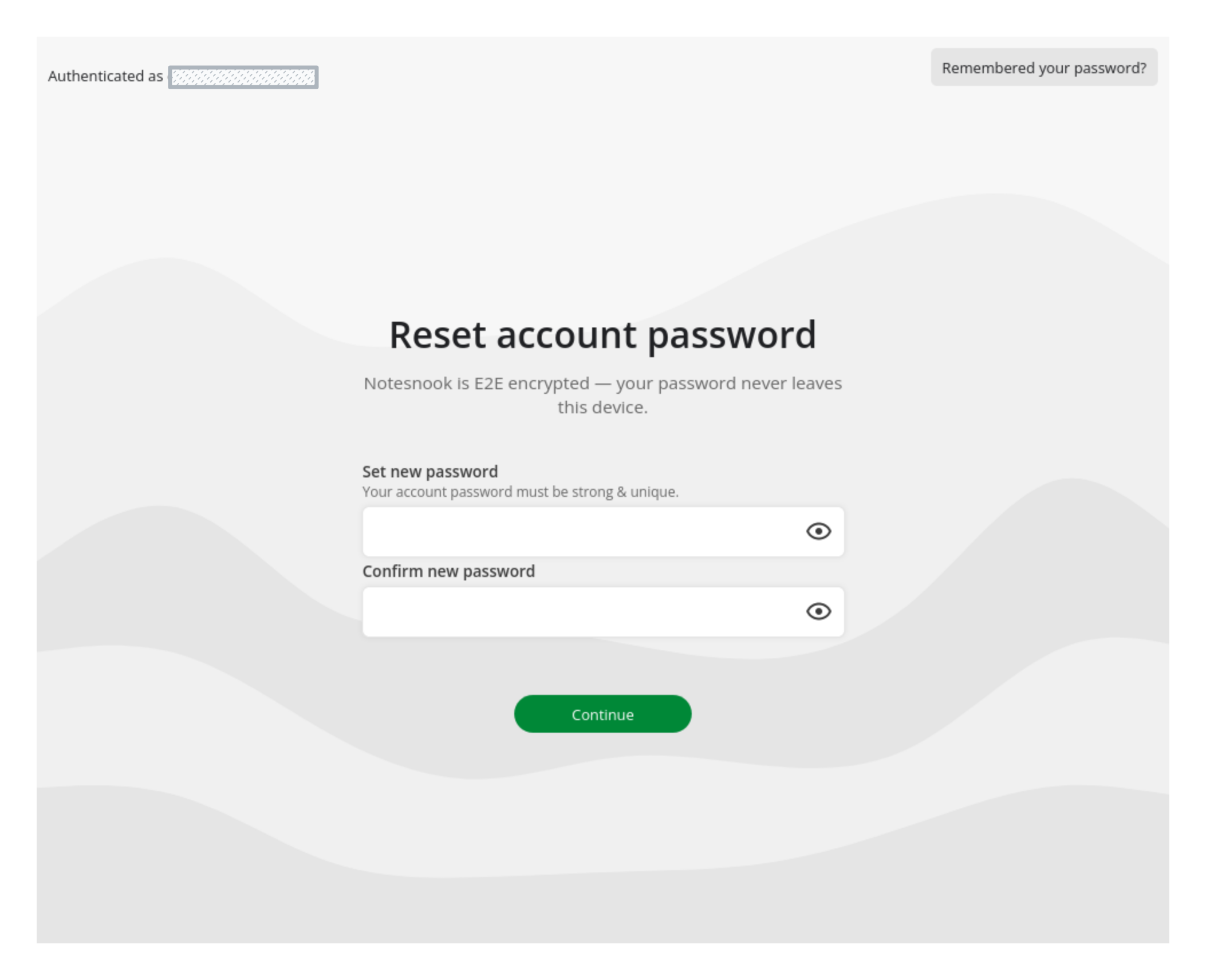
- Choose a strong & memorable password. We recommend using a password manager like 1Password or Bitwarden so you never lose your password again.
- Click
Continueand wait until the process finishes. - Save the new recovery key when prompted in a safe place.
That's it — your account is recovered. Log back in on your other devices to sync and read your notes again.
Troubleshooting
I am getting "ciphertext cannot be decrypted using this key" error during sync
This usually happens when some of your data is still encrypted with your older key. It is very rare, however.
The only way to recover from this corruption is to reset your account.
I am getting "Sync server is not responding. Please check your internet connection..." error
The main cause of this error is our server getting timed out when clearing your data. If you have a lot of data (in GBs) then you might face this.
As a workaround, try again from a laptop using Google Chrome or Mozilla Firefox. If it still fails, contact us — a very large account may need to be cleared server-side.
Related pages
- Account settings — email, password and profile
- Two-factor authentication — a second step at login
- How is my data encrypted? — the encryption behind every note
- Backup and restore — keeping your own encrypted copy