
Task and todo lists Essential
Create todo lists and manage your tasks in Notesnook with ease using task lists. A task list lives inside a note, so your checklist sits alongside the notes that explain it — and it is encrypted like everything else.
Task lists are part of the Essential plan and above. On the free plan you can still use a simple checklist: type [] inside an existing bullet list, or pick Checklist from the toolbar.
Add a task list to a note
- Place the cursor on an empty line.
- Click the
+(Insert) button in the toolbar. - Choose
Task list.
You can also press Ctrl+Shift+T, or type [] on an empty line if you have Markdown shortcuts turned on.
Track your progress
Every task list carries a header showing how many of its items are done, with a progress bar that fills as you check things off. Checking a parent task checks all of its subtasks, and clearing the last subtask unchecks the parent.
Adding a title to the task list
When you add a task list to a note, a header is added on top of each task list. You can add a title to the task list.
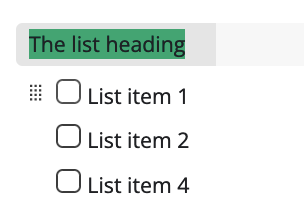
Sort completed tasks in task list
Sort completed tasks to the bottom of the list with the  button in the task list header.
Clear completed tasks from task list
Remove every completed item at once with the  button in the task list header.
Moving task items with drag and drop
You can move task items and change the order by drag and drop using the drag handle at the start of each task item.
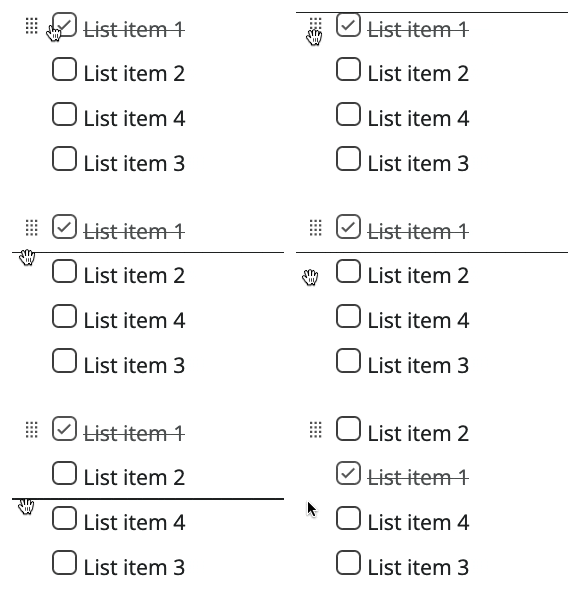
Adding a subtask to a parent task
Notesnook supports unlimited subtasks under a single task item.
- Move selection to the end of the parent task item
- Press
Enterto create a new task item - Press
Tabto indent it into a sub task
Subtasks support the following features:
- Completing a parent task will automatically complete all the sub tasks and vice versa.
- You can select multiple sub tasks & mark them as completed/uncompleted together
Make a task list read-only
Once a list is final, you can lock it against accidental edits with the Make task list readonly button in the task list header — useful for a checklist you follow but don't change, like a packing list or a release checklist. The setting applies to nested task lists too, and you toggle it back off from the same button.
Related pages
- Editor toolbar — where the insert menu lives, and how to customize it
- Outline lists — collapsible nested lists for structuring longer notes
- Markdown shortcuts — type
[]instead of using the menu - Reminders — get notified about a note at a specific time
- Plans & limits — what the Essential plan unlocks