
Tables

Tables in Notesnook provide all the basic to advanced functionality. On the left side are the Row properties and Insert row below buttons while on top of the table are Table settings and Insert column right buttons.
The first row of a newly created table is always a header. You can always delete this row if you do not like the header row formatting.
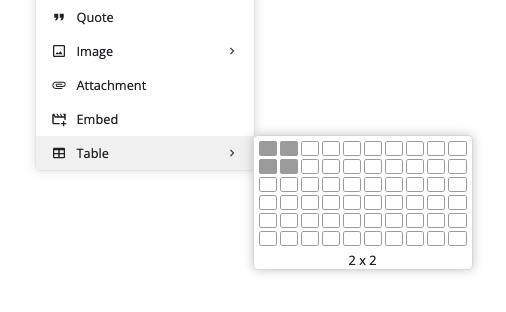
Insert a table
- Click the
 and select the table block.
 - Select the size of the table grid.
Resizing table columns
Table columns are resizable on all platforms.
- Hover on the separator between two columns, it will turn green
- Click and hold separator to resize the column.

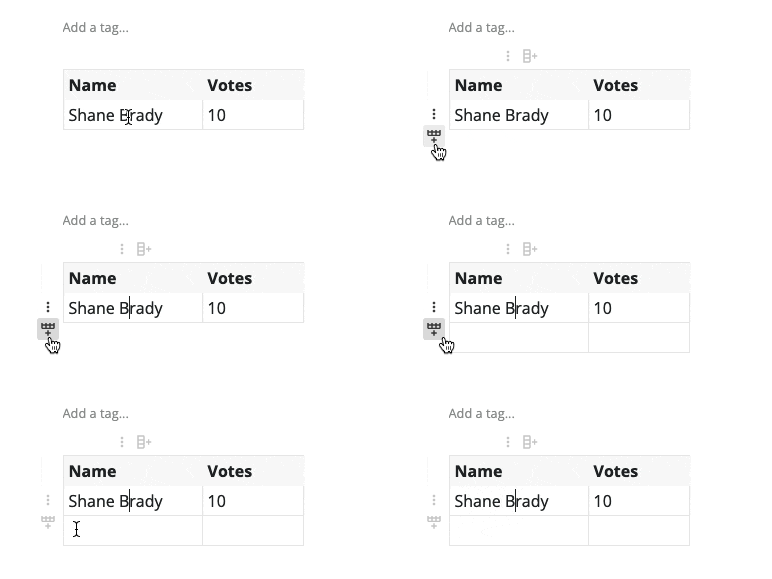
Insert a row
- Click a cell below which you want to insert a new row.
- Click the
Insert row belowbutton to insert a new row.
Delete a row
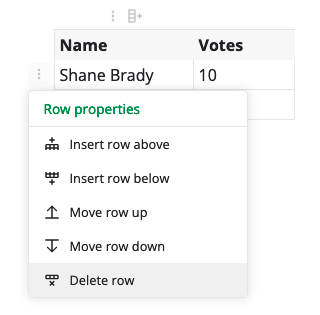
- Click a cell of the row you want to delete
- Click the row properties button and select
Delete row
Move row
- Click a cell of the row you want to move.
- Click the row properties button and select
Move row upto move the row up orMove row downto move the row down.

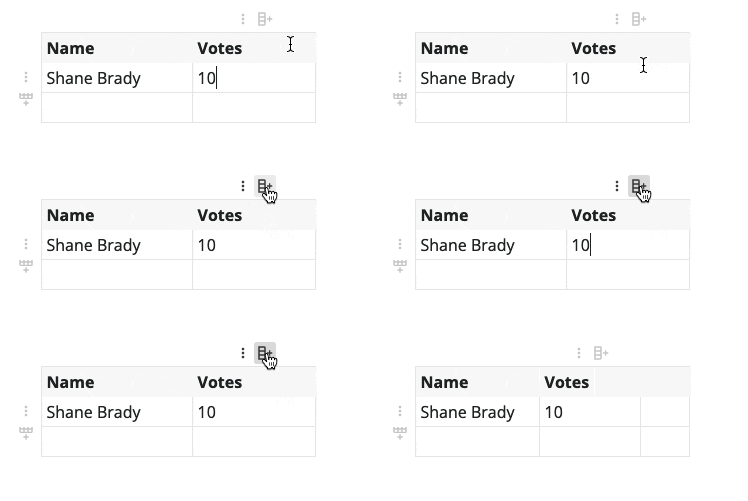
Insert a column
- Click a cell in a column after which you want to insert a new column.
- Click the
Insert column rightbutton to insert a new column.
Delete a column
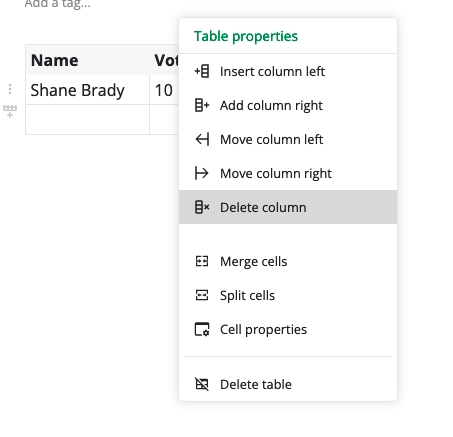
- Click a cell of the column you want to delete
- Click the column properties button and select
Delete column
Move column
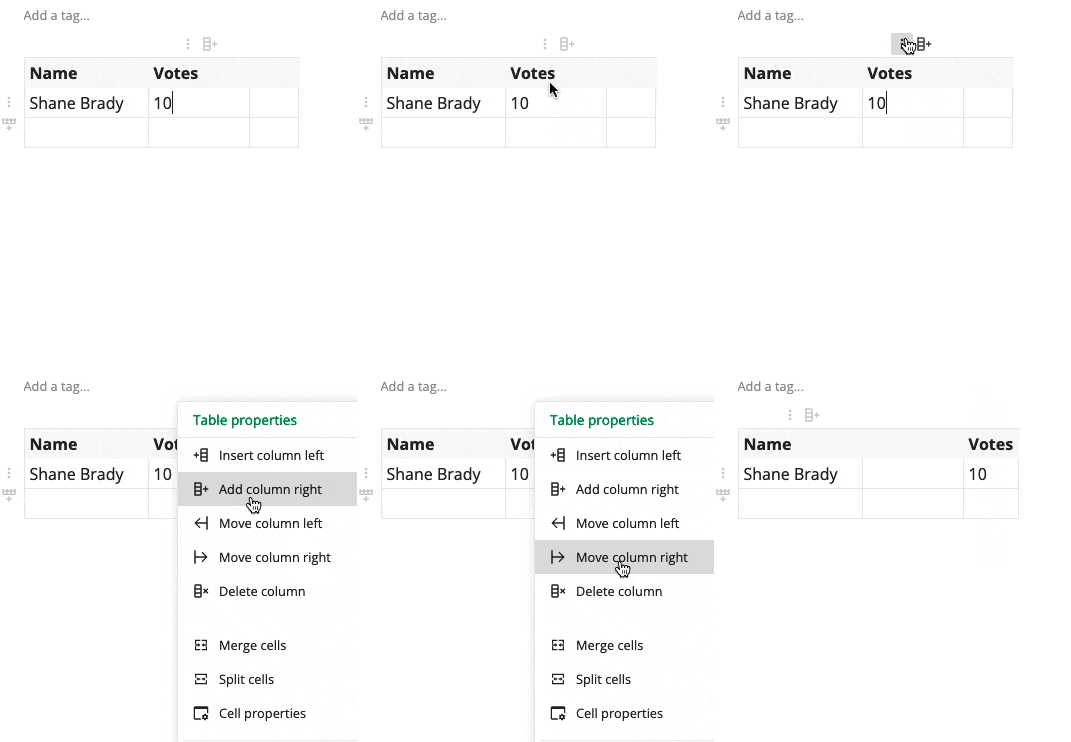
- Click a cell of the column you move.
- Click the column properties button on top and select
Move column rightto move the column right orMove column leftto move the column left.
Merge cells
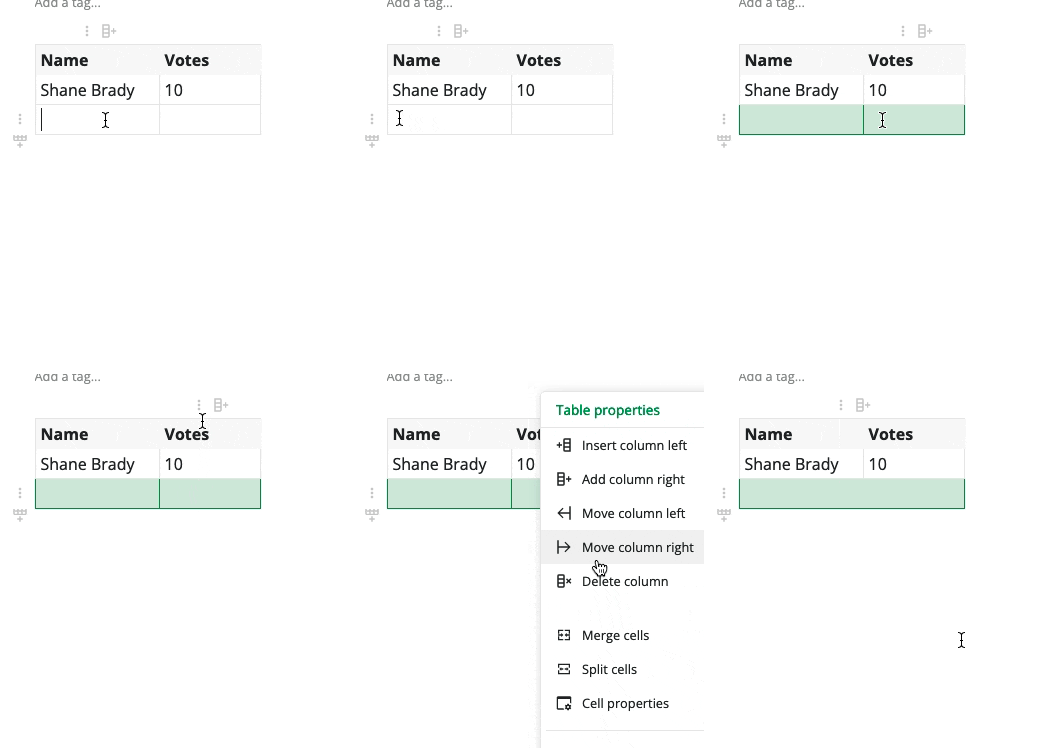
- Drag and select the cells you want to merge
- Click table properties on top of table and select
Merge cells
Split cells
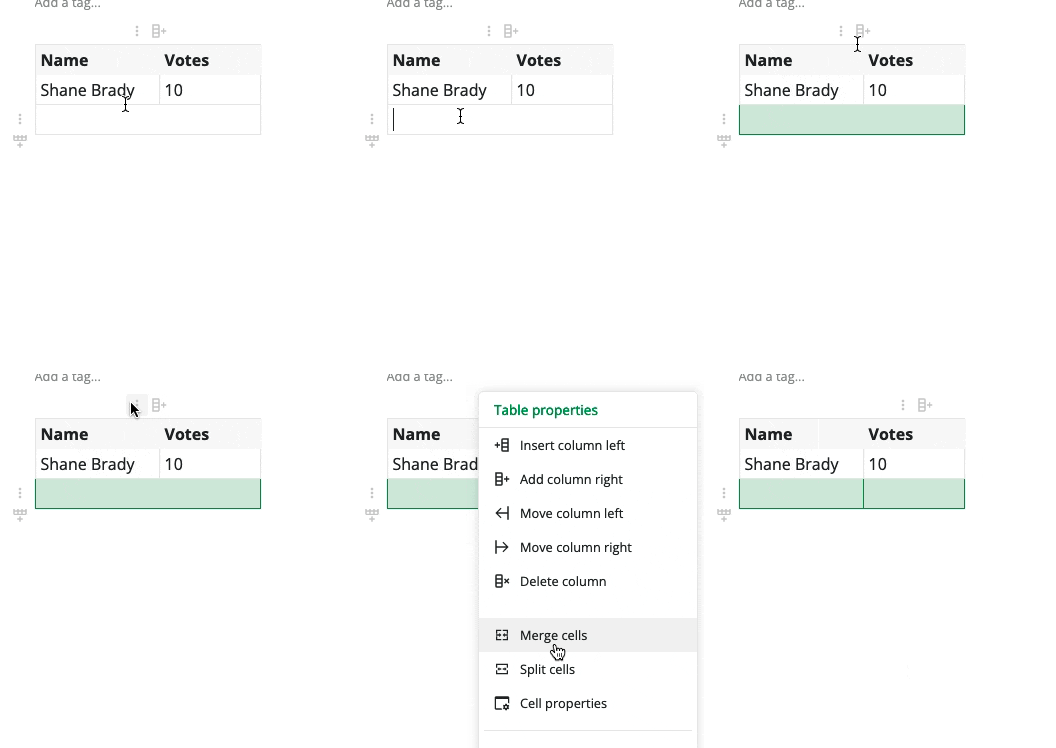
- Double click to select the cell you want to split
- Click table properties on top of table and select
Split cells
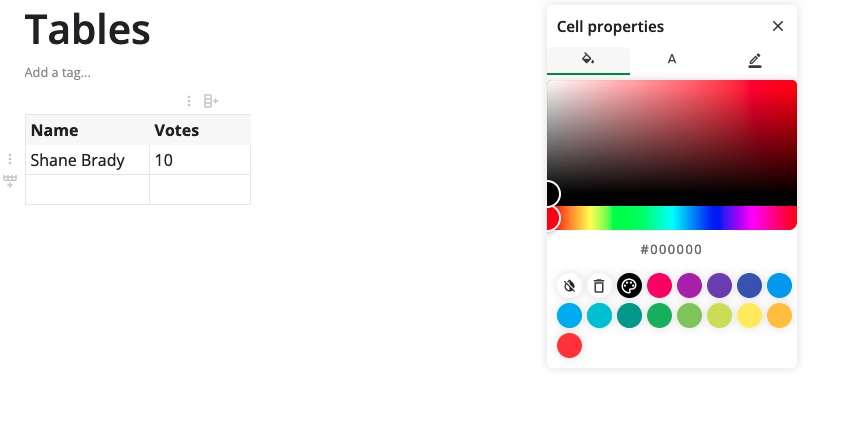
Cell Properties
- Select the cell you want to customize
- Click the table properties button on top
- Select Cell properties
- You can now change cell background, text color and border color.
Import CSV Pro
Import CSV turns a .csv file into a new table at the cursor, so you don't have to retype spreadsheet data. The first row of the file becomes the table's header row.
- Focus inside the note where you want the table.
- Click the button and open
Table. - Click
Import CSVand pick a.csvfile.
The table is inserted with one row per line and one column per field.
Importing a CSV into a table requires a Pro plan. See Plans & limits.
Export CSV Pro
Export CSV writes out the table you are in — and only that table — as a .csv file you can open in a spreadsheet.
- Click a cell in the table.
- Click the
Table settingsbutton on top of the table. - Click
Export CSV.
The file is saved as table.csv.
Exporting a table as CSV requires a Pro plan. See Plans & limits.
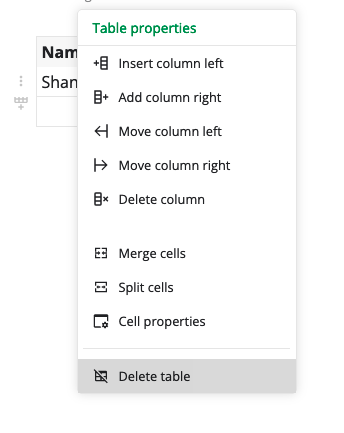
Delete table
- Select the table
- Click table properties button on top.
- Select
Delete tablefrom drop down menu
Related pages
- Editor toolbar — every formatting tool
- Markdown shortcuts — formatting as you type
- Plans & limits — what each plan unlocks and the exact limits