
How do I import notes from Evernote?
Here is how to move your notes from Evernote into Notesnook.
Exporting your Evernote notebooks
INFO
If you are tech savvy and know your way around a computer, you can use a tool like evernote-backup to quickly export all your Evernote notes as .ENEX files.
- Open the Evernote desktop app — exporting is not possible from the Evernote web app — and go to
Notebooksin the side menu: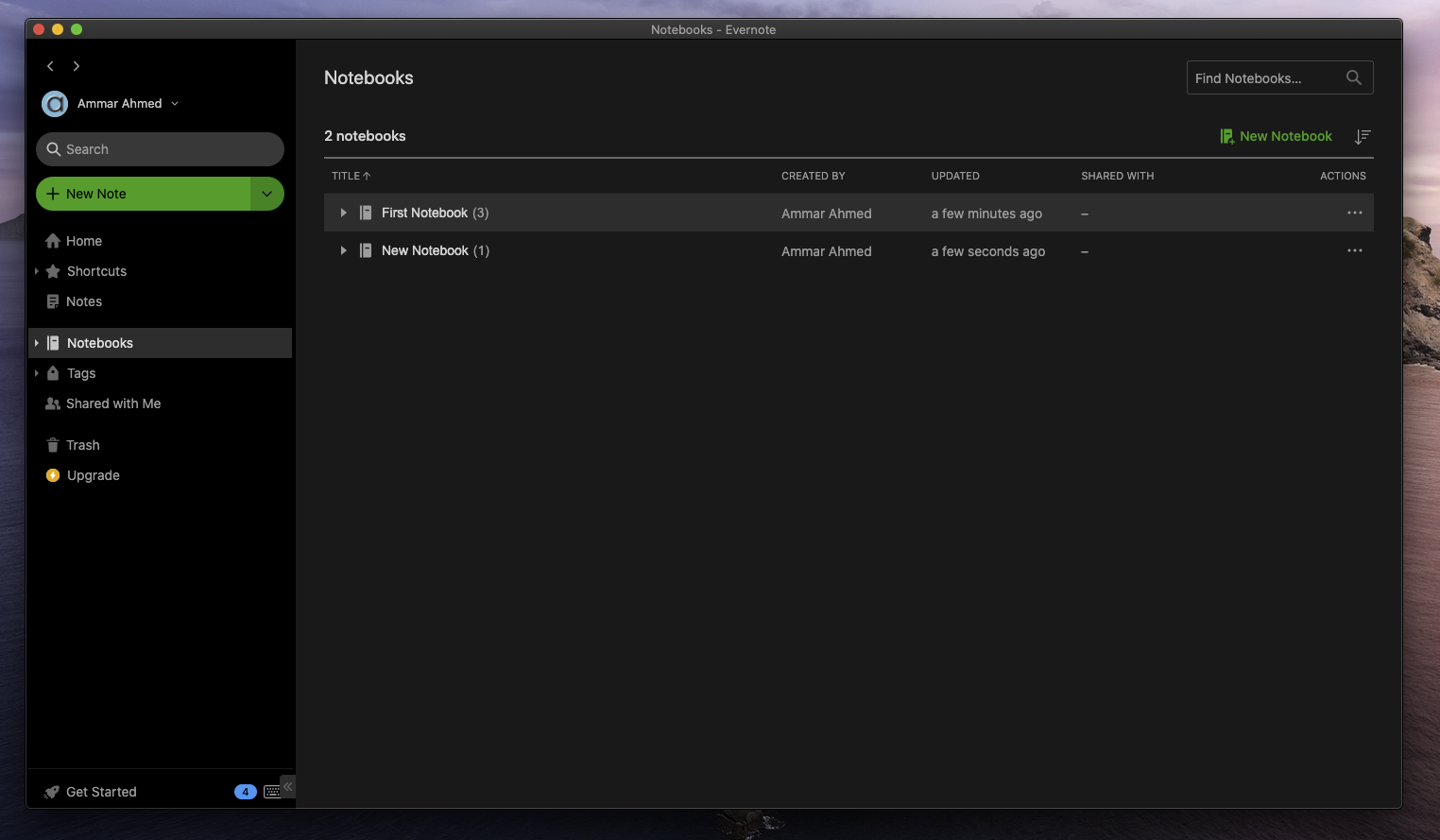
- Click the three dot button on each notebook and click
Export Notebook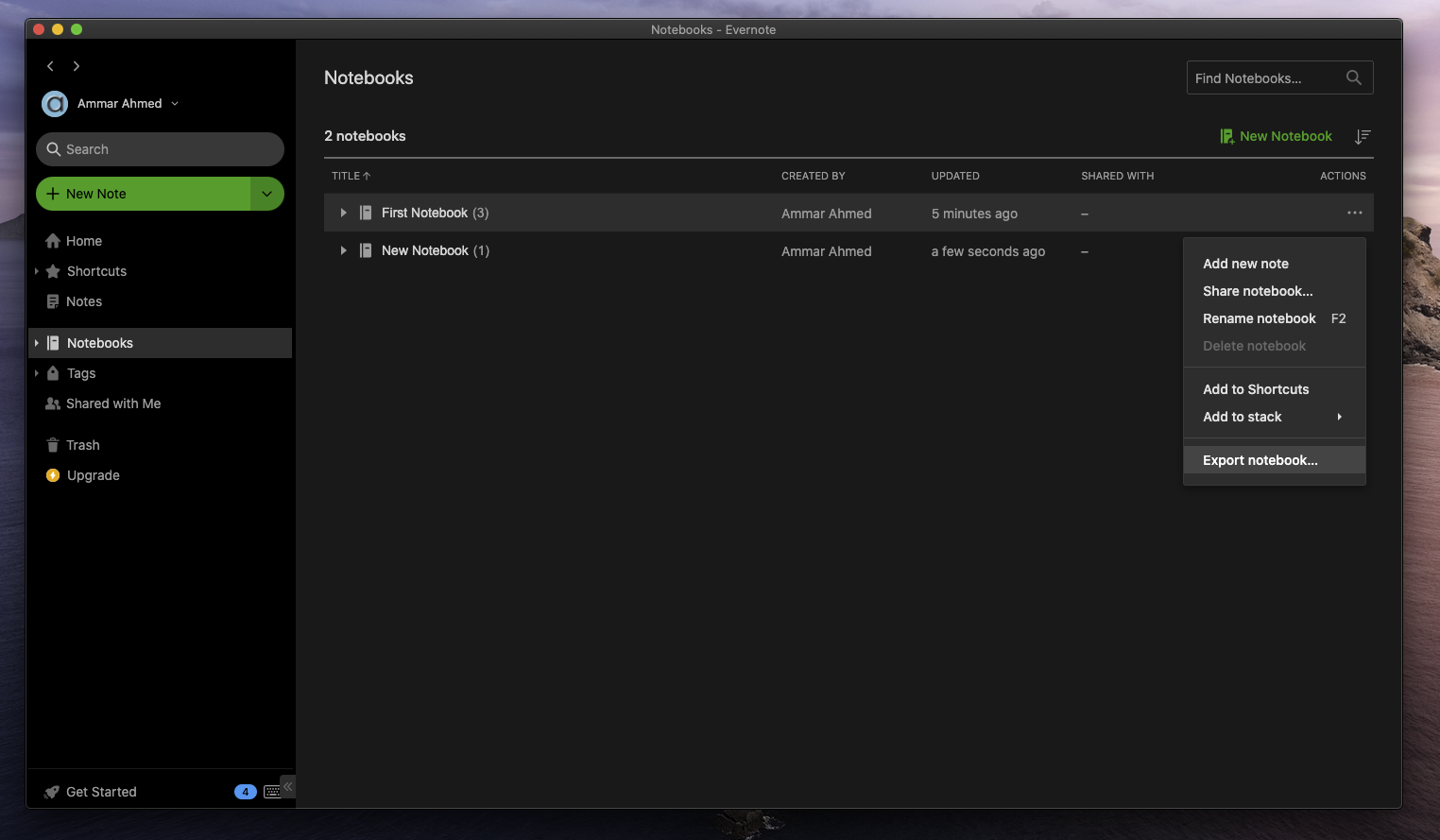
- Choose
ENEX formatthen clickExport, and save it to your desired location. Repeat this for all the Notebooks you want to import into Notesnook.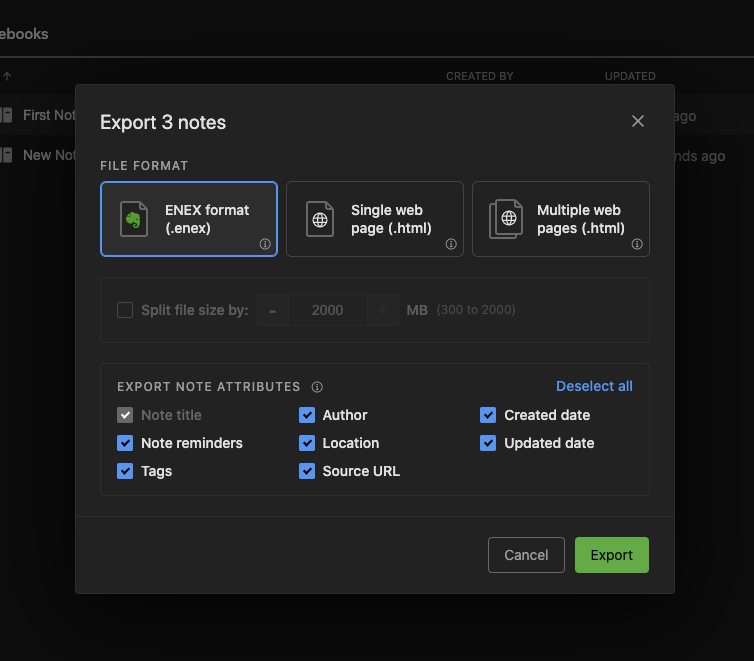
Importing .ENEX files into Notesnook
Once you have the .enex files containing your Evernote notes, it is time to import them.
- Open the Notesnook app (web or desktop)
- Go to
Settings > Import & export > Notesnook Importerand select Evernote from the list of apps.
- Drop (or select) the
.enexfiles you exported earlier from Evernote, and click the "Start importing" button.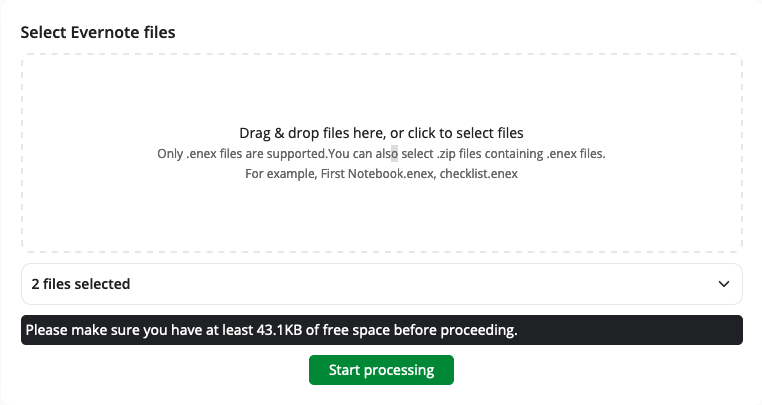
- Once the importing completes you should see all your notes in Notesnook. If you face any issues during importing, feel free to report them on GitHub.
Supported formats
Notesnook Importer is one of the most robust Evernote importers, supporting almost 100% of Evernote formats. Here's a list of everything that can (or can't be) imported into Notesnook:
Related pages
- Importing notes — every app and file format Notesnook can import
- Import from Google Keep — moving notes out of Google Keep
- Import from Joplin — moving notes out of Joplin
- Import from Obsidian — moving notes out of Obsidian
- Backup and restore — protecting your notes once they're in
- How is my data encrypted? — what happens to your notes after the import