
System tray menu
Notesnook features a system tray menu to give quick access to some common functions such as:
- Closing the app
- Starting a new note
- Creating a new notebook
See it in action here:
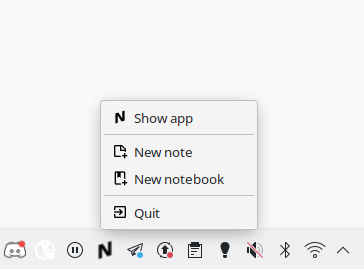
Minimize to tray
Instead of always taking space in your taskbar, you can hide Notesnook in your system tray on minimizing:
- Go to
Settings - Click
Desktop integration - Click
Minimize to system trayto enable/disable it.
Close to tray
To prevent accidentally closing the Notesnook app, it is possible to always close it to the system tray:
- Go to
Settings - Click
Desktop integration - Click
Close to system trayto enable/disable it.
Related pages
- Auto start — launching with your computer
- Jumplist & dock menu — new note from the taskbar
- Updates & advanced — release track, DNS and zoom