
Callouts Essential
A callout is a colored, titled box that pulls one part of a note out of the flow — a warning, a tip, a definition you keep forgetting. Each callout has a heading you can rename and a body that can hold paragraphs, lists, code and other blocks, and it can be collapsed down to its title alone.
Callouts are part of the Essential plan and above.
Insert a callout
- Place the cursor where you want the callout, or select the text you want to put inside it.
- Click the
+(Insert) button in the toolbar. - Hover
Calloutin the menu. - Pick a type from the submenu.
The new callout is titled with the type name in capitals — INFO, WARN — and the cursor lands in that title so you can type a real one straight away. If you had text selected, that text becomes the callout's body.
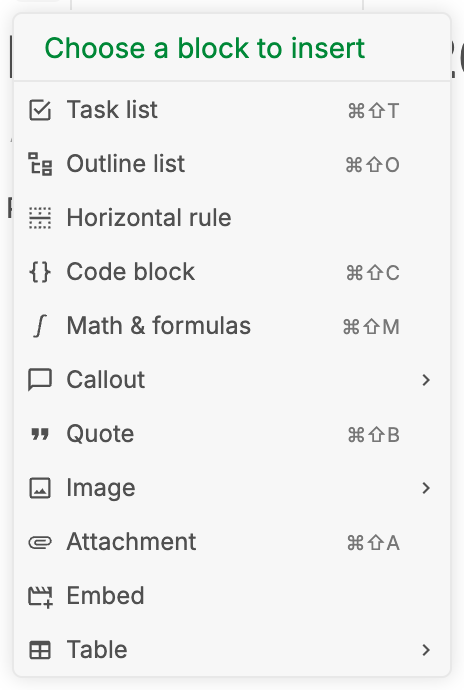
The eight types in the menu
| Type | Use it for |
|---|---|
Abstract | a summary at the top of a long note |
Hint | an aside that helps but isn't required |
Info | neutral context |
Success | something that worked, or a confirmed result |
Warn | something that can go wrong |
Error | something that failed or must not be done |
Example | a worked example |
Quote | a quotation or citation |
Write a callout with a markdown shortcut Essential
On an empty line, type > immediately followed by the callout type — no space — then press Enter:
>warningTo give it a title in the same step, add the title after the type:
>warning Back up before you upgradeThe first form titles the callout WARNING; the second titles it Back up before you upgrade. Either way the cursor ends up in the body, ready for content.
Markdown shortcuts need Essential too
This is a Markdown shortcut, so it needs the same Essential plan as callouts themselves, plus the setting switched on. Markdown shortcuts are off by default on web and desktop — turn on Markdown shortcuts in Settings → Customization → Editor. On mobile they are on by default. Typing > followed by a space still makes a plain blockquote, on any plan.
Types the shortcut accepts
The shortcut understands far more type names than the menu offers — many of them aliases that map onto the same styling, so you can write whichever word comes naturally:
note, abstract, summary, tldr, info, todo, tip, hint, important, success, check, done, question, help, faq, warning, warn, caution, attention, failure, fail, missing, danger, error, bug, example, quote, cite
So >tldr, >faq, >caution and >bug all work even though none of them appear in the insert menu.
Collapse and expand a callout
Callouts fold away to a single title line, which is useful for long asides you only need occasionally.
- Move the pointer to the right-hand end of the callout's title row.
- Click the collapse control there.
Click it again to expand. The collapsed state is saved with the note content, so a callout you collapsed is still collapsed the next time you open the note, on any device.
Related pages
- Editor toolbar — every block you can insert into a note
- Outline lists — the other collapsible block in the editor
- Markdown shortcuts — the full shortcut list and how to switch it on
- Tasks and todo lists — checkable to-do blocks inside a note
- Plans & limits — what Essential unlocks, and everything else