
Organize notes with colors
Colors are a simple and quick way to organize your notes.
Free accounts can create up to 7 colors. Essential raises the cap to 20, and Pro and Believer are unlimited — see Plans & limits.
Assign color to a note
- Right click a note
- Click
Assign color - Assign a color to the note.
- You can click the color again to remove note from that color
INFO
After you assign a color to a note, the note will adapt to that color.

Color Shortcuts
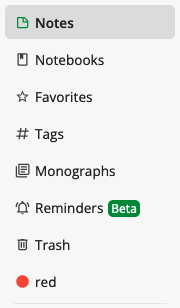
By default, all created colors are displayed in the side menu.
Hiding Shortcuts
Shortcuts can be hidden on mobile and desktop/web.
- Right click the side menu.
- Select the color you wish to hide.
Bringing Back Hidden Shortcuts
- Right click the side menu.
- Select the color you wish to unhide.
Renaming a color
Colors can be renamed to anything you want.
- Right click a color in side menu
- Click "Rename color"
- Edit the color and click "Save"
Related pages
- Tags — cross-cutting labels
- Side menu shortcuts — pinning notebooks and tags to the sidebar
- Customizing the app — home screen, sidebar, sorting and formats
- Plans & limits — what each plan unlocks and the exact limits