
Editor tabs and panes
The Notesnook editor keeps every note you open in a tab, so you can jump between notes without losing your place. Beside the editor you can open a table of contents, a note's properties or a PDF preview, and you can strip the app back to the writing surface alone with focus mode.
Open a note in a new tab
- Right click a note in the list and choose
Open in new tab. Middle-clicking the note does the same thing. - Or click the
New tabbutton in the editor's top bar to open an empty tab, then start writing.
You can also drag a note from the list onto the tab strip to open it in a new tab, or drop it onto an existing tab to open it in that tab. Double-clicking the empty part of the tab strip opens a new tab.
In the desktop app there are keyboard shortcuts for all of this:
| Action | Shortcut |
|---|---|
| New tab | Ctrl+T |
| Close the active tab | Ctrl+W |
| Close all tabs | Ctrl+Shift+W |
| Next tab | Ctrl+Tab |
| Previous tab | Ctrl+Shift+Tab |
In the web app the browser owns most of those combinations, so only tab switching is bound: Ctrl+Alt+→ for the next tab and Ctrl+Alt+← for the previous one. On macOS use Command wherever the table says Ctrl.
Manage tabs from the tab menu
Right click any tab for its menu:
Save— only shown when that tab has unsaved changesCloseClose othersClose to the rightClose to the leftClose allReveal in list— scrolls the notes list to the note in this tab, and highlights itPin
Pinned tabs survive every "close" command
Close others, Close to the right, Close to the left and Close all all skip pinned tabs. Reveal in list is unavailable while focus mode is on, because the notes list is hidden.
Middle-clicking a tab closes it, and tabs can be dragged left and right to reorder them.
== Mobile
The Tabs sheet gives you a pin button and a close button on each tab, plus a close-all button and + in its header. There is no equivalent of Close others, Close to the right, Close to the left or Reveal in list on mobile.
:::
Pin a tab
Pinning keeps a note where you put it. A pinned tab:
- moves to the front of the tab strip and stays there;
- shows a pin icon in place of its close button, so it can't be closed by accident;
- is skipped by every bulk close command;
- never gets replaced — while a pinned tab is active, opening another note always opens a new tab.
Right click the tab and choose Pin. Click the pin icon on the tab to unpin it again.
Move back and forward inside a tab
Each tab remembers the notes you opened in it, exactly like browser history — useful when you follow a note link and want to get back.
Use the back and forward arrows to the left of the tab strip. They're greyed out when there is nothing to go back or forward to.
INFO
Back and forward are disabled in a pinned tab — a pinned tab is meant to stay on the note you pinned it to.
Split the editor with a side pane
Three panes can open to the right of the editor:
- Table of contents — click the table-of-contents button in the top bar. It lists every heading in the note as a tree; click a heading to scroll to it, and use the chevrons to collapse a branch. If the note has no headings it says
No headings found. - Properties — click the
Propertiesbutton in the top bar for tags, notebooks, colors, reminders, attachments,Note historyand note settings. - PDF preview — opens by itself when you preview a PDF attachment in the note, so you can read the PDF and write at the same time. See reading a PDF for the pane's own toolbar.
Drag the divider between two panes to resize them; the widths are remembered for next time. The table of contents and the properties pane share the same space, so opening one closes the other.
Write without distractions
Click the sunglasses in the status bar at the bottom of the window. The side menu and the notes list disappear and only the editor is left. Click the glasses again to bring them back.
While focus mode is on, a second button appears next to it: Enter fullscreen. That one hands the whole screen to Notesnook; Exit fullscreen or the Esc key returns you to the window.
Change the editor width and text size
The status bar at the bottom of the window holds both controls:
Enable editor margins/Disable editor margins— switch between a comfortable centered column and using the full width of the pane.- The
−and+buttons zoom the editor text between 30% and 500% in steps of 10%. Click the percentage itself to reset it to 100%.
Check the word and character count
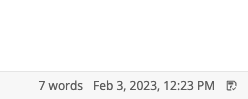
The status bar always shows the total word count for the note, plus a count of the words in your selection when you have text selected.
Click that word count to open the full statistics popup:
WordsCharactersParagraphsSpaces
Each one shows the total, and how many are inside your current selection.
Very long notes stop saving automatically
Above 100,000 words the status bar shows Auto save: off. From then on the note is saved only when you ask it to — press Ctrl+S, or click the save indicator at the right of the status bar (Click to save). The same indicator tells you whether the current note is saved. Even when autosave is off, notes are still saved when you switch away from the current editor tab.
Related pages
- Editor toolbar — every formatting tool and how to customize the toolbar
- Headings — what feeds the table of contents, and how to collapse a section
- Find & replace — searching inside the note that's open in a tab
- Personalizing the editor — fonts, spacing and title formats
- Keyboard shortcuts — the full list for desktop and web