
How do I back up and restore my notes?
Taking regular backups means you can recover your notes if your data is corrupted or you lose access to your account. All backups are stored locally encrypted (unless you turn off backup encryption) on your device.
Store your password & recovery key safely
Since all your data is end-to-end encrypted, we have no way to restore your account data if you forget your account password and lose your account recovery key. That's why we recommend that you store your password & recovery key in a password manager or some other safe place.
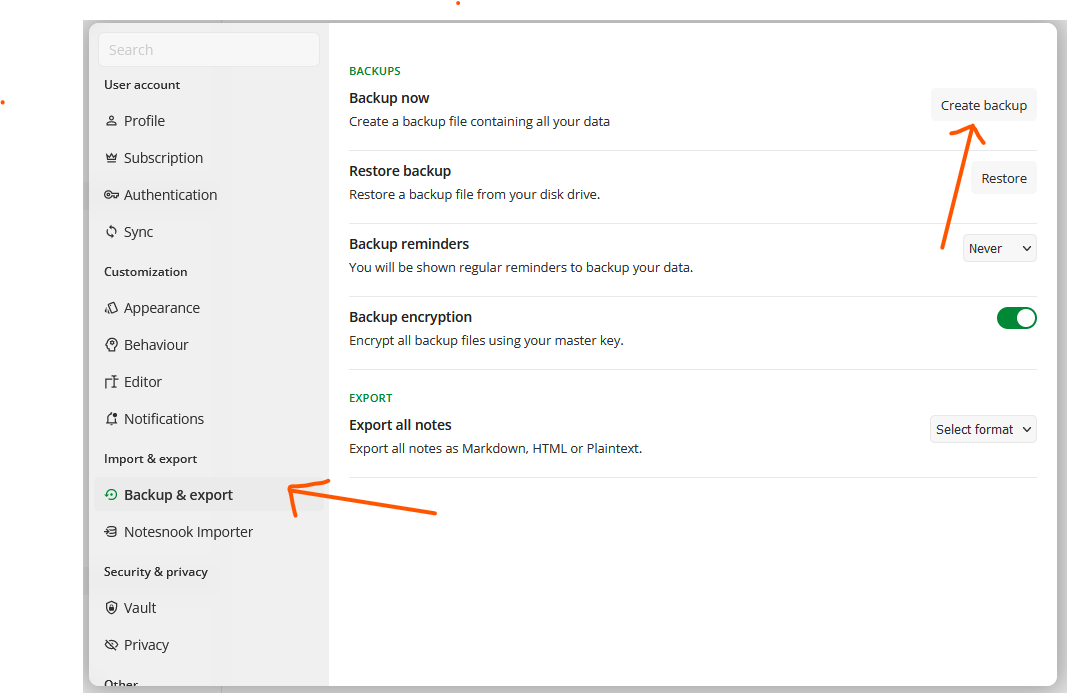
- Go to
Settings. - Open
Backup & exportsection - Click
Create backupunderBackup nowheading to create a new.nnbackupzfile
Turn on automatic backups
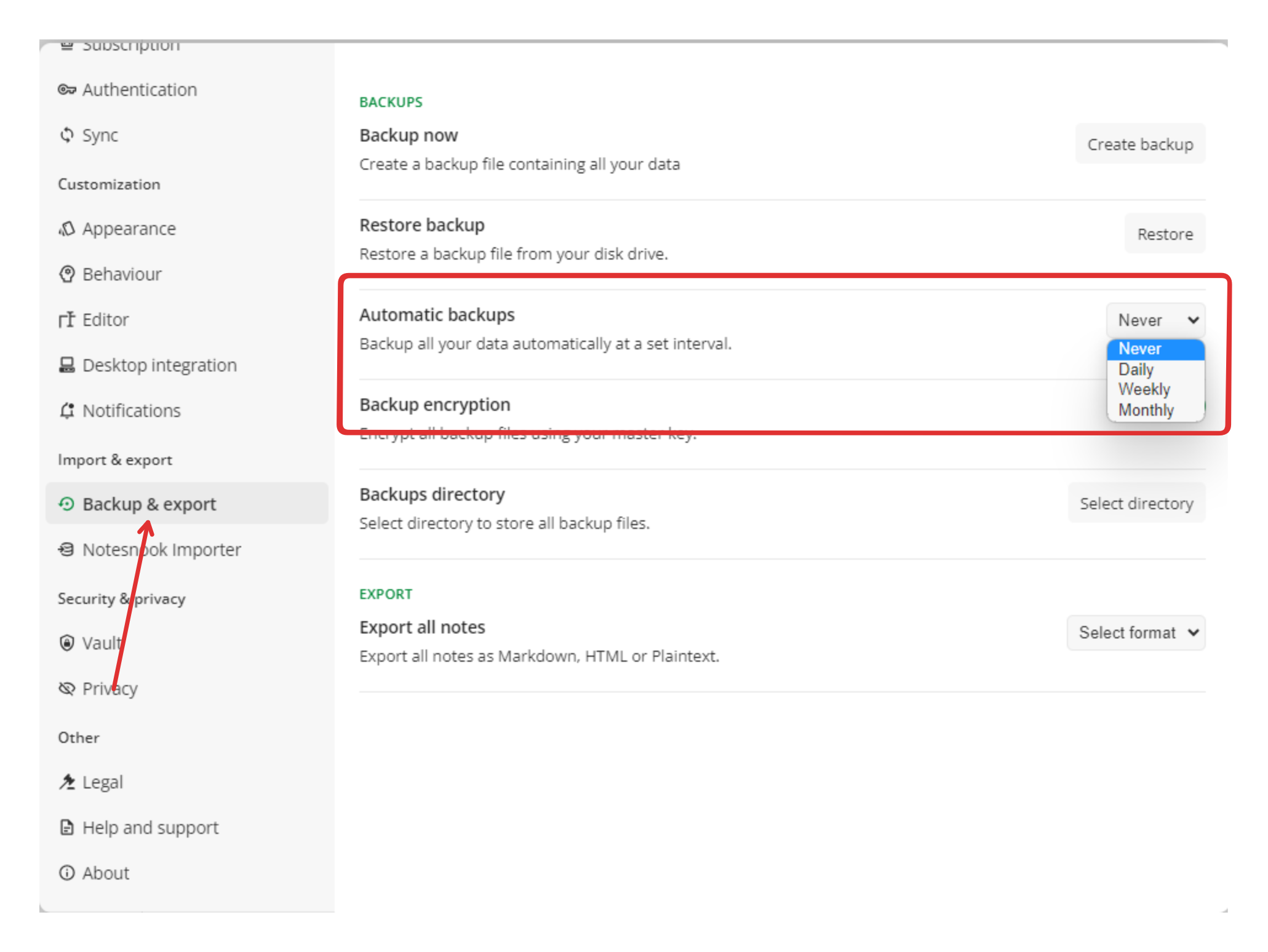
For maximum safety against potential data loss, you can enable daily, weekly or monthly backups of your notes. Enabling automatic backups will ensure that all your data is safely backed up locally after a regular interval.
- Go to
Settings. - Open
Backup & exportsection - Select the Automatic backups interval from the dropdown
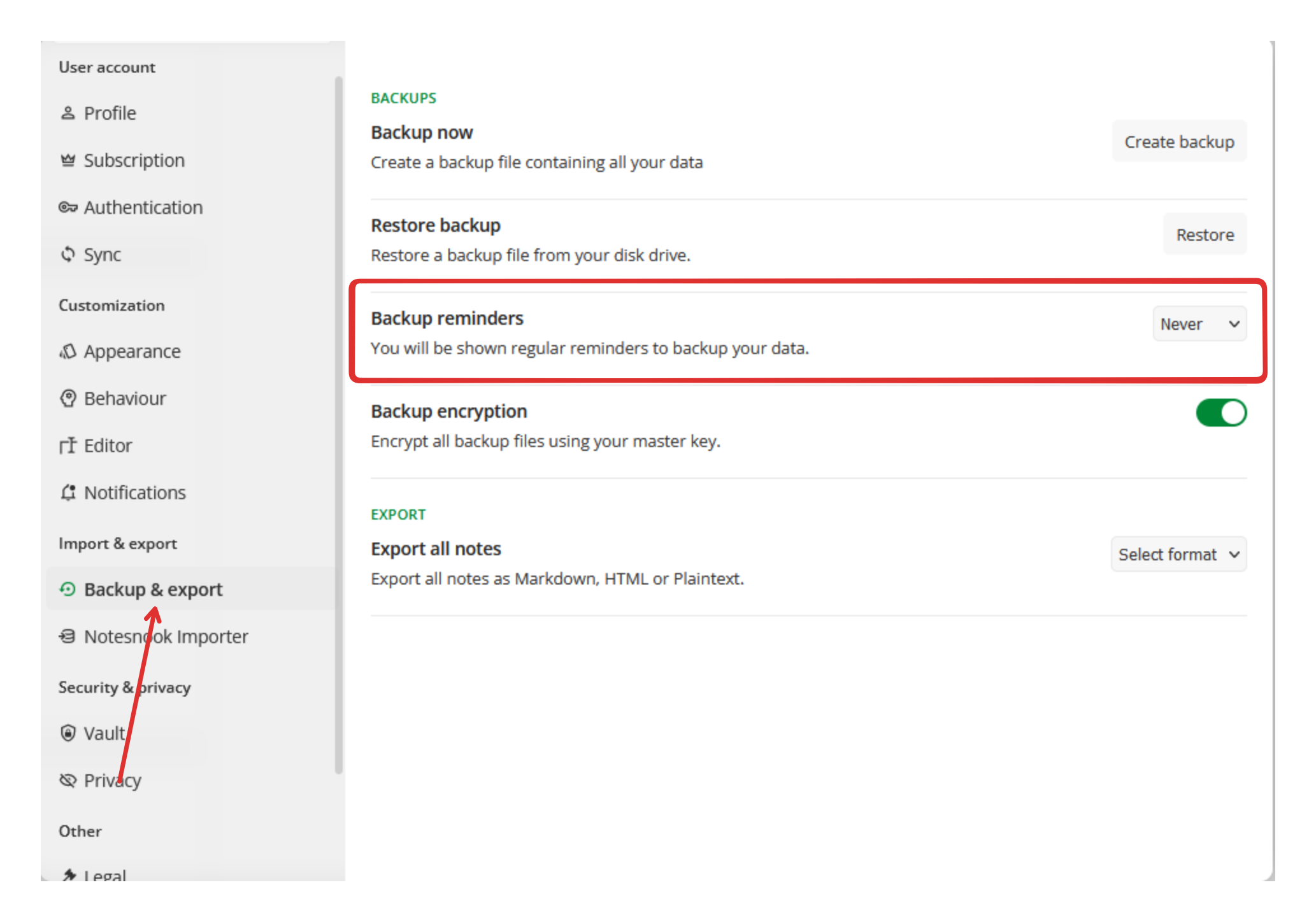
- Go to
Settings. - Open
Backup & exportsection - Select the Backup reminders interval from the dropdown
== Mobile
- Go to
Settings→Backup & restore. - Tap
Backups. - Choose an automatic backup frequency. : :::
Keep backups encrypted
To keep your backups secure & private, it is recommended that you enable encryption on your backup files instead of storing them as plaintext data. Encrypted backups are on by default.
- Go to
Settings. - Open
Backup & exportsection - Click the toggle next to
Backup encryptionto enable/disable encrypted backups
INFO
Backups are always encrypted with your account password.
Restore a backup
Restoring overwrites what you have now
Restoring a backup replaces your current content in-place. Anything that changed since that backup was taken is reverted to how it was in the backup. Entirely new content — notes you created after the backup — is not touched.
Always create a backup before restoring one.
Recover a few old notes without losing today's work
If you only want something back from an old backup, don't restore it over your current data and hope for the best. Sandwich it:
- Create a new backup of your current data.
- Restore the old backup and take out what you needed.
- Restore the new backup from step 1 to put everything back as it was.
That sequence means no recent change is lost. Be aware of one side effect: restoring an old backup can bring back notes you had deleted since, so check your trash and notes list afterwards.
At any point in time, you can restore a backup to recover lost data. Backups created on one account can be restored on another Notesnook account.
- Go to
Settings. - Open
Backup & exportsection - Click
Restorebutton next toRestore backupheading - Select the
.nnbackupzor.nnbackupfile from your PC that you want to restore.
Related pages
- Exporting notes — taking your notes to another app
- Recovering your account — when you forget your password
- Attachments & files — managing the files in your notes
- Version history — going back to an earlier draft
- Plans & limits — what each plan unlocks and the exact limits