
How do I import notes from Joplin notes app?
Here is how to move your notes from Joplin into Notesnook.
- Open the Joplin Desktop app.
- Click
File > Export All -> JEX - Joplin Export Fileand save the .JEX file at your desired location.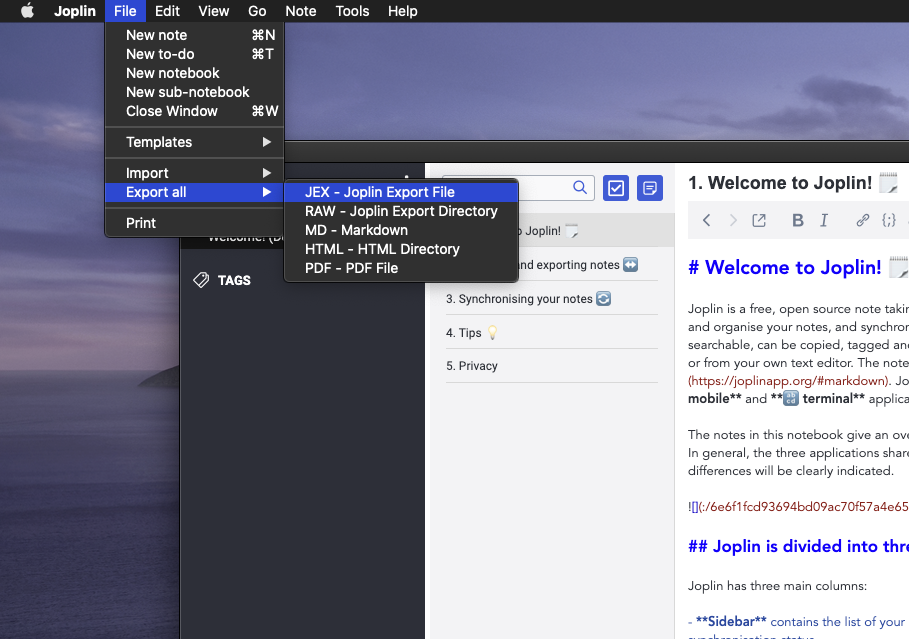
- Open the Notesnook app (web or desktop)
- Go to
Settings > Import & export > Notesnook Importerand selectJoplinfrom list of apps.
- Drop (or select) the .jex backup file you exported earlier from Joplin:
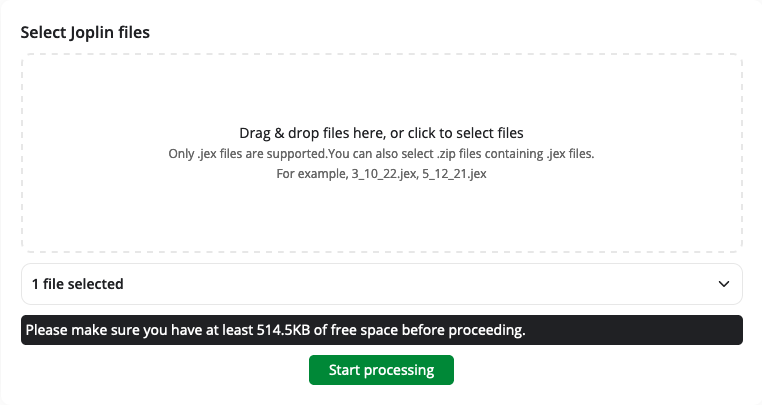
- Once the importing completes you should see all your notes in Notesnook. If you face any issues during importing, feel free to report them on GitHub.
Supported formats
Related pages
- Importing notes — every app and file format Notesnook can import
- Import from Evernote — moving notes out of Evernote
- Import from Google Keep — moving notes out of Google Keep
- Import from Obsidian — moving notes out of Obsidian
- Backup and restore — protecting your notes once they're in
- How is my data encrypted? — what happens to your notes after the import