
Spell checker
Desktop app only
Configuring the spell checker is only available in the desktop app.
Toggling the spell checker
You can enable/disable the spell checker at any time from Settings:
- Go to
Settings - Click
Editor - Click the
Enable spell checkertoggle to enable/disable the spell checker
Choosing languages
For macOS users
On macOS it is not possible to choose custom languages. Instead the spell checker uses your system settings.
Network activity notice
Notesnook supports spell checking text in multiple languages at the same time. However, it doesn't ship all the supported languages but gives you the choice to enable the languages you want.
Selecting a new language will download the dictionary from dictionaries.notesnook.com.
To select new languages:
- Go to
Settings - Click
Editor - Click
Languages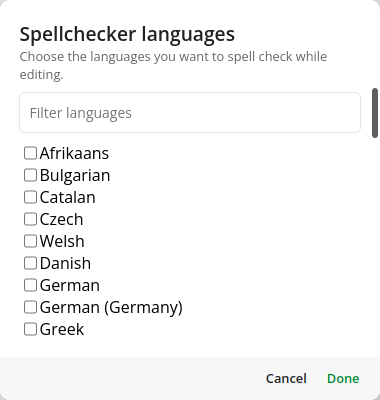
- Select the languages you need
- Click
Doneand spell checking should now be working for the languages you selected.
My language is not included in the list
While we'd love to include all the languages, we are dependent on Electron (which, in turn, depends on Chromium) for adding the required dictionaries.
It might be possible in the future to implement a custom spell checker to support all the languages.
Related pages
- Personalizing the editor — fonts, spacing and title formats
- Updates & advanced — release track, DNS and zoom
- Customizing the app — home screen, sidebar, sorting and formats