
Outline lists Essential
An outline list is a nested list whose items fold. Any item with children gets a collapse arrow, so a hundred-line outline can sit in a note as five visible lines until you open the branch you need.
That is the whole difference from a normal bullet list: a bullet list nests too, but everything in it is always visible. An outline list hides and shows branches, which makes it the better choice for meeting structures, project breakdowns, book outlines and anything else you scroll past more often than you read.
Create an outline list
- Place the cursor on an empty line, or select the lines you want to convert.
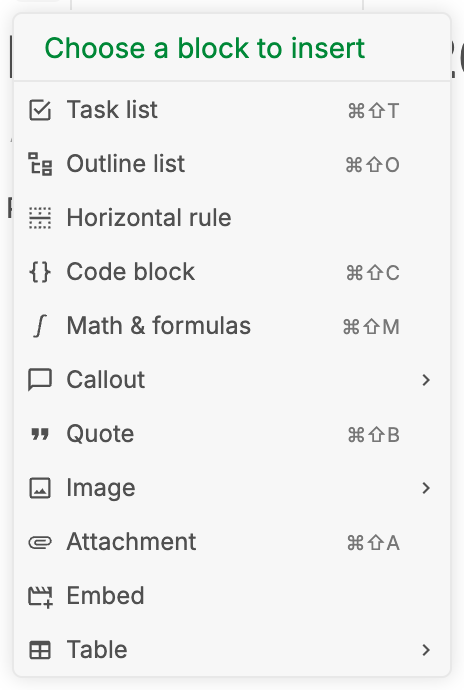
- Click the
+(Insert) button in the toolbar. - Choose
Outline list.
Ctrl+Shift+O (⌘+Shift+O on macOS) does the same thing, and toggles the list back to plain paragraphs if you press it inside one.
Press Enter to start the next item, exactly as in any other list.
Type -o instead
On an empty line, type -o followed by a space and the line becomes the first item of an outline list.
Markdown shortcuts need to be enabled
-o is a Markdown shortcut. Markdown shortcuts are off by default on web and desktop: turn on Markdown shortcuts in Settings → Customization → Editor. On mobile they are on by default. The toolbar button and Ctrl+Shift+O do not depend on that setting.
Nest an item under another
- Put the cursor in the item you want to move in.
- Press
Tabto nest it under the item above. - Press
Shift+Tabto move it back out one level.
As soon as an item has something nested under it, it becomes a parent and grows a collapse arrow.
Collapse and expand a branch
- Click the arrow in the margin to the left of a parent item — or put the cursor anywhere in that item and press
Ctrl+Space(⌘+Spaceon macOS). - Everything nested under it folds away; the item itself stays visible.
Repeat to expand it again.
Items with no children have nothing to fold, so no arrow appears on them. The collapsed state is saved with the note, so a branch you folded is still folded next time you open the note, on any device.
⌘+Space on macOS
macOS assigns ⌘+Space to Spotlight by default. If nothing happens when you press it in the editor, use the collapse arrow instead, or rebind Spotlight in System Settings → Keyboard → Keyboard Shortcuts.
Related pages
- Editor toolbar — every block you can insert into a note
- Tasks and todo lists — checkable to-do blocks, also nestable
- Callouts — the other collapsible block in the editor
- Markdown shortcuts — the full shortcut list and how to switch it on
- Plans & limits — what Essential unlocks, and everything else