
Editor toolbar
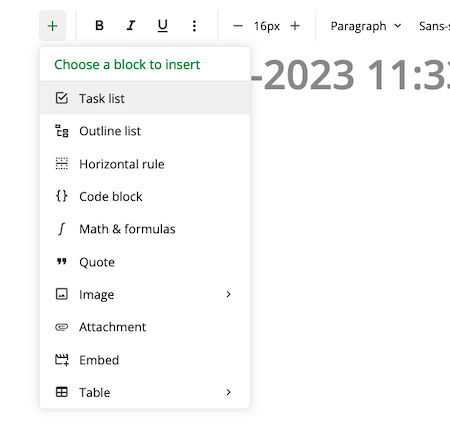
The editor toolbar holds every formatting tool, and the + button on it inserts blocks — task lists, tables, images, code blocks and more.

Add a block to a note
- Focus inside the note where you want to insert a block.
- Click the
 button on the toolbar.
 - Select the block you want to insert; for example a task list.
Customize the editor toolbar Pro
An editor toolbar carries a lot of tools. Hiding the ones you never use, and keeping the ones you reach for at the front, leaves you with a toolbar that matches how you actually write.
Desktop and mobile keep separate toolbars
Your toolbar layout syncs to your other devices, but desktop and mobile are stored separately — changing the toolbar on your laptop does not change the one on your phone, and the other way round.
On every platform the toolbar editor lives in the same place: Settings > Customization > Editor > Customize toolbar.
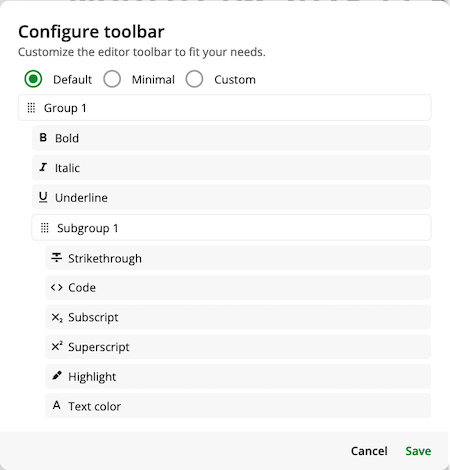
Groups — tools are distributed across groups. You can add, remove and reorder the groups in the toolbar. You can move tools between groups with drag and drop.
Subgroups — each group can have a single subgroup. Tools in a subgroup are collapsed into a drop down menu in the toolbar.
Disabled items — tools that are hidden from the toolbar. Drag a tool into this section to remove it from the toolbar.
Choose a toolbar preset
The toolbar always uses one of three presets, shown at the top of the Customize toolbar screen:
Default— the full set of groups and tools.Minimal— a trimmed-down toolbar with only the most-used tools.CustomPro — your own arrangement of groups, subgroups and tools.
- Go to
Settings>Customization>Editor>Customize toolbar. - Select
Default,MinimalorCustom.
Editing groups or tools while Default or Minimal is selected switches you to Custom automatically.
Saving a Custom preset requires a Pro plan — Default and Minimal are available on every plan. See Plans & limits.
Toolbar layouts on mobile are per device class
Mobile keeps a separate toolbar layout for each device class — phone, small tablet and tablet — and picks the one that matches the current window size. Customizing the toolbar on your phone therefore does not change the layout you see on a tablet, and a tablet that switches between split-screen and full screen can move between the small tablet and tablet layouts.
Reset the toolbar
There is no reset action. Select the Default preset on the Customize toolbar screen to go back to the stock toolbar.
Add a new group
To add a new group to the toolbar, click the + button in the header.
Add tools to a group
Drag tools from other groups or from Disabled items into a group to add them.
Create a subgroup
- Hover on a group header.
- Click the
+button to add a subgroup. - Drag and drop tools into the subgroup.
- Tools in the subgroup are collapsed into a drop down.
Delete a group
You can remove a group and all its tools from the toolbar.
- Hover on a group header
- Click the trash icon to delete the group.
- All the tools in the group are moved to the
Disabled itemssection at the bottom.
Disable a tool
- Hover on a tool header
- Click the trash icon to disable the tool.
- The tool is moved to the
Disabled itemssection at the bottom.
Related pages
- Markdown shortcuts — formatting as you type
- Tables — rows, columns, merging and CSV
- Images & embeds — pictures, files and embedded content
- Keyboard shortcuts — every shortcut in one place
- Plans & limits — what each plan unlocks and the exact limits